
TABLE OF CONTENTS
- Overview
- Setting up your Turnitin Account
- Submitting Assignments in Turnitin
- Viewing Your Overall Grade and Instructor Feedback
- Interpreting the Similarity Report
- Troubleshooting
- Frequently Asked Questions
- Contact
Overview
 |
|
Setting up your Turnitin Account

- Go to turnitin.com.
- At the top right corner of the website, click on “Login”.
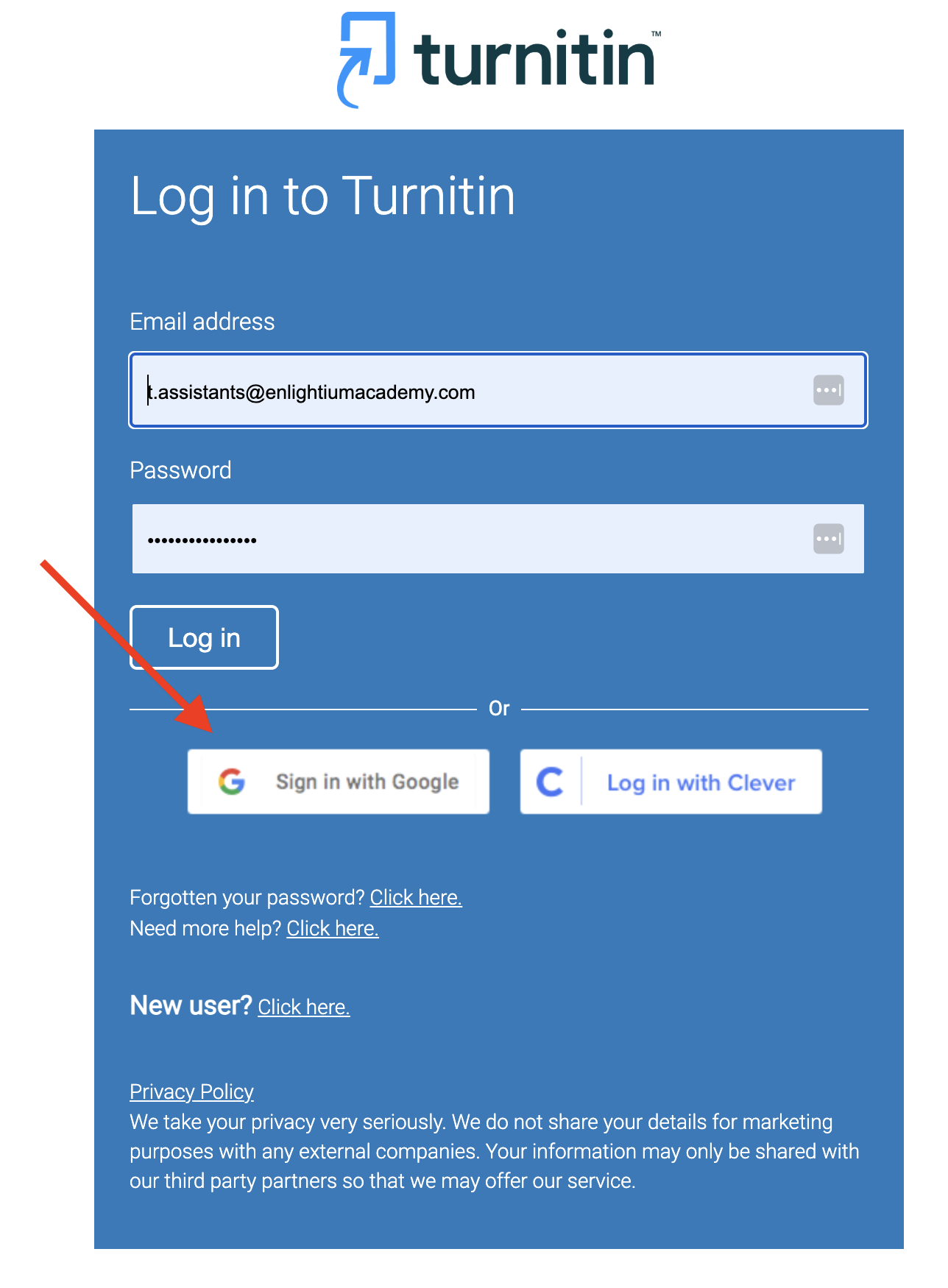
- When you are at the login screen, click Sign in with Google.
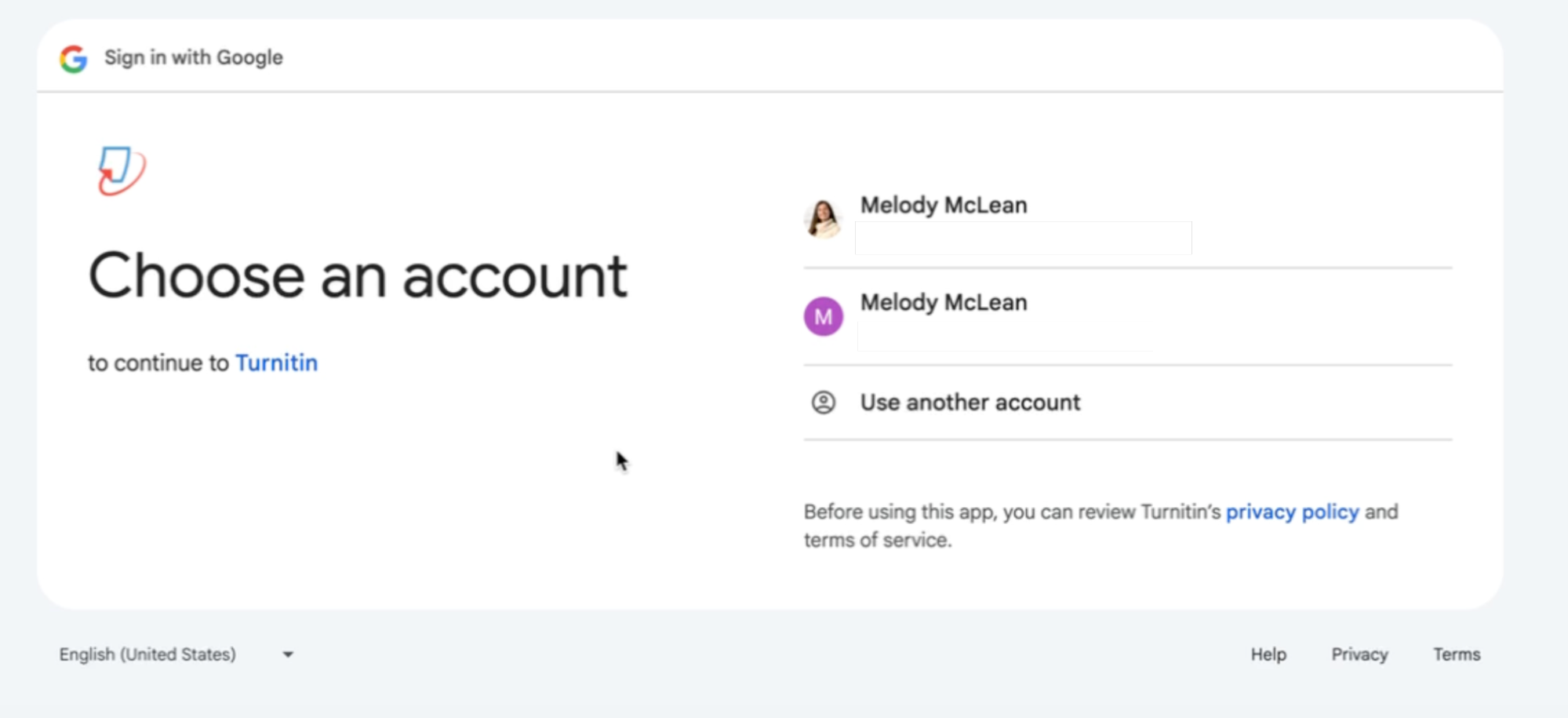
- You will be prompted to select an account. Please choose your Enlightium student email account. If it doesn’t appear on the right side of your screen, click “Add account” and manually enter your student email address.
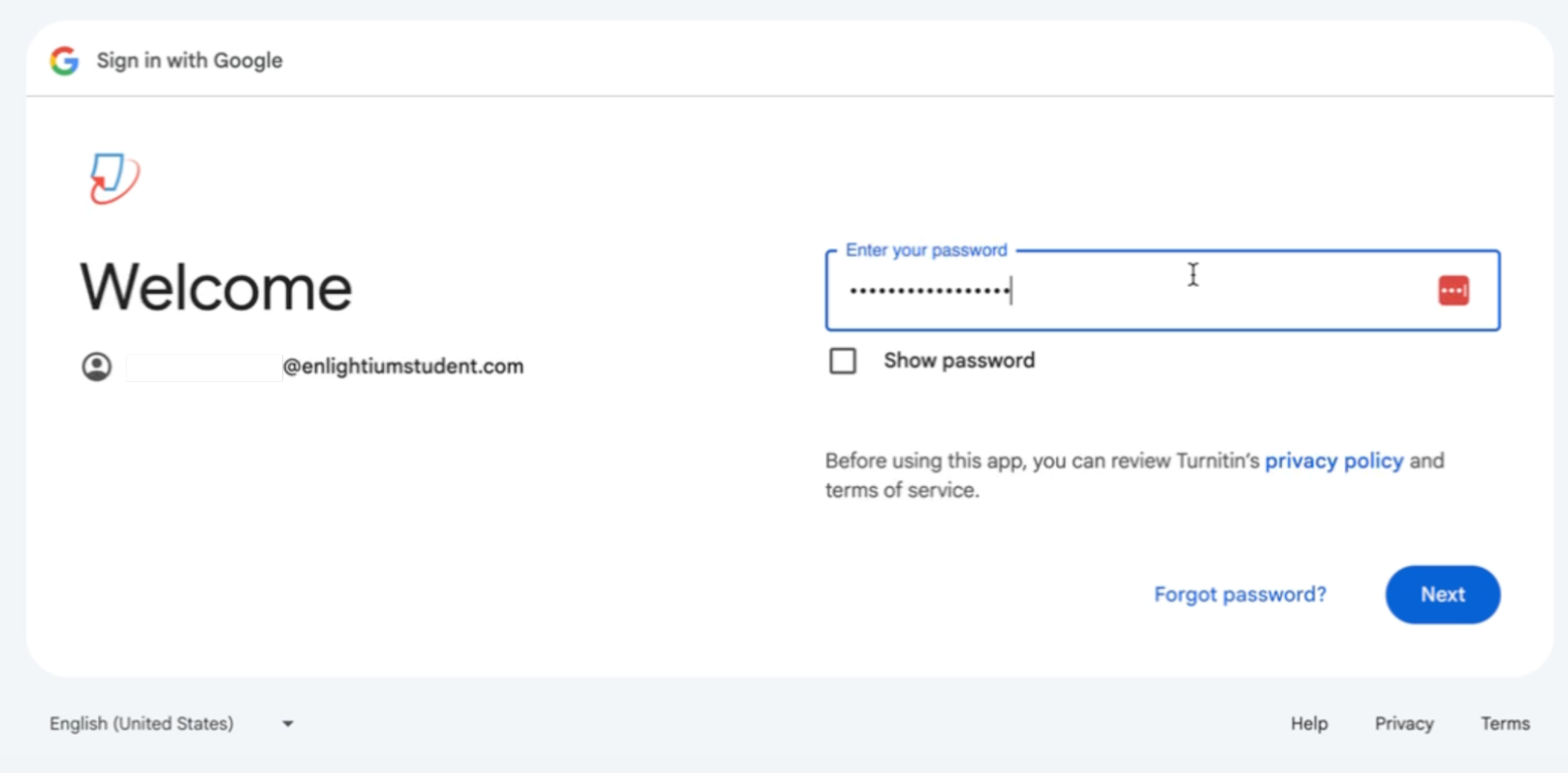
- Next, enter the password associated with your Enlightium student email account.
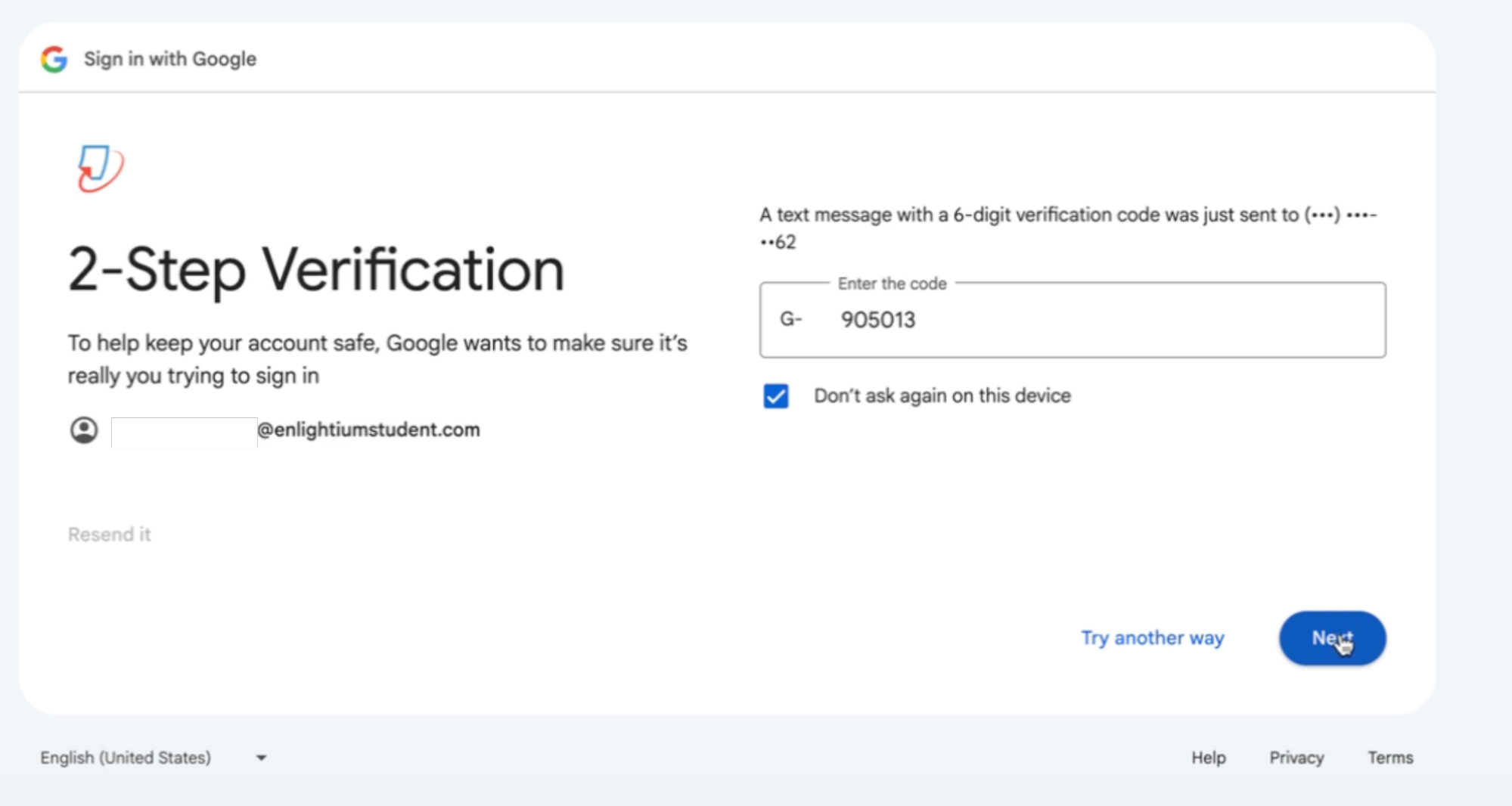
- Lastly, you'll need to verify your account. Two-step verification was enabled when your student email was first set up. A verification code will be sent to the phone number or alternate email address you provided. Google will display part of the phone number or email address where the code was sent. Locate the code and enter it to complete the sign-in process.
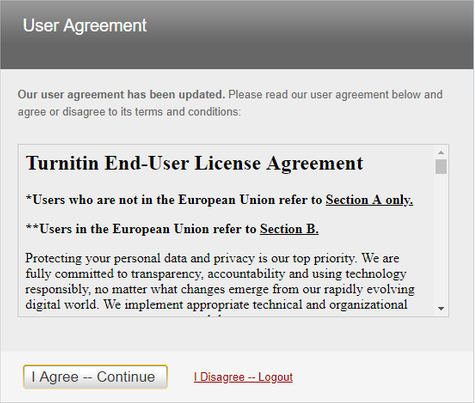
- Click the “I Agree – Continue” Button.
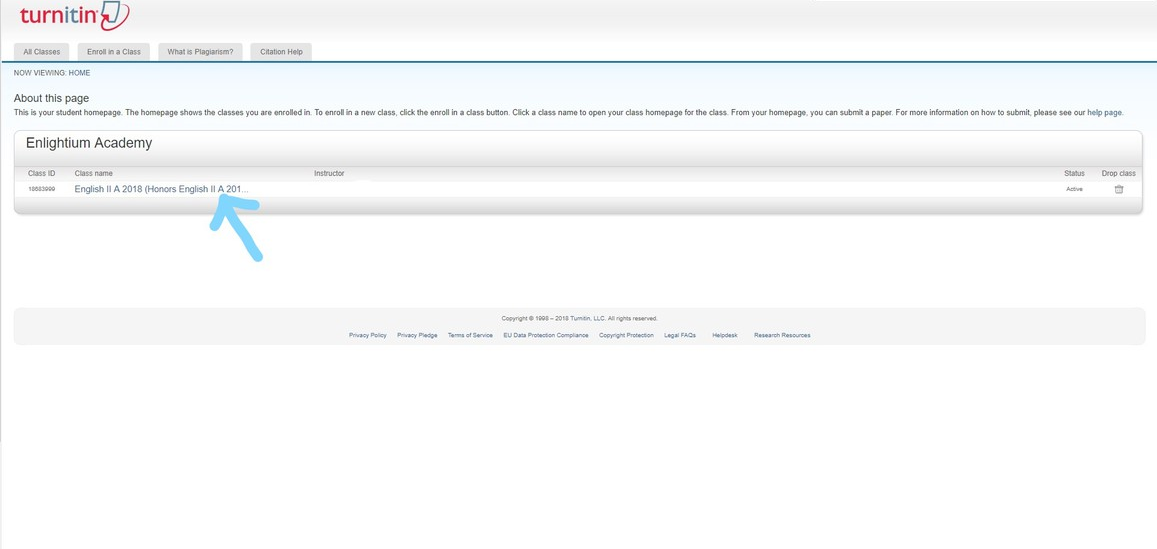
- You will then see the list of courses you are assigned to, along with your instructor’s name. Please verify that you have been entered into the correct courses. If one is missing or incorrect, please let your instructor know by sending them a direct message in Ignitia.
Note: The steps above only need to be completed the first time you log in to Turnitin using Single Sign-On (SSO). If you check “Remember this device,” future logins will be quicker—just click “Sign in with Google,” ensure your student email is selected, and you’ll be logged in automatically.
Submitting Assignments in Turnitin
 | Once you have successfully set up your Turnitin account, you can start submitting your assignments. Please read through the following steps for specifics: |
- On the homepage of Turnitin, click the course you want to submit an assignment for.
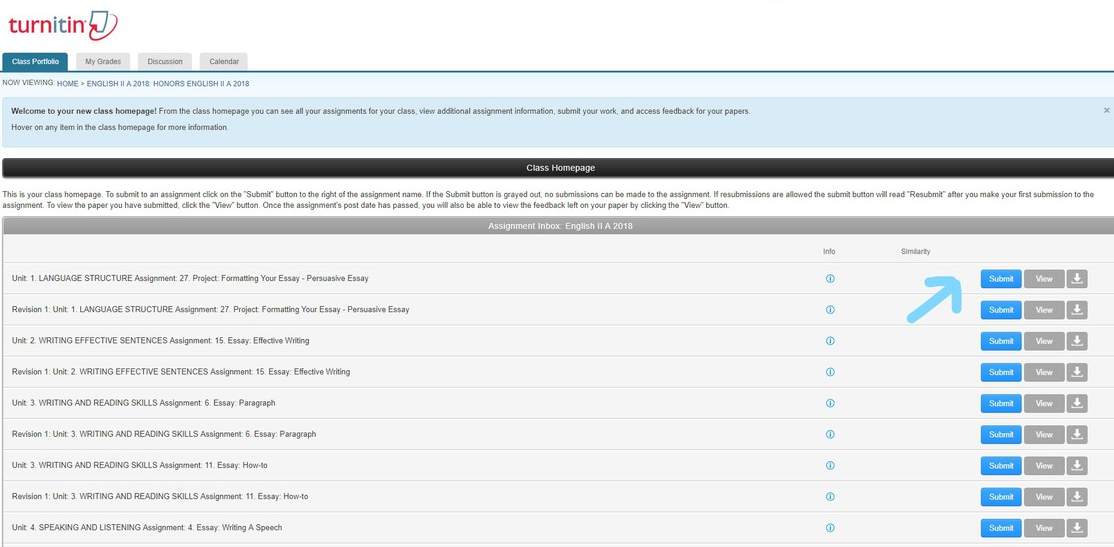
- There will be a list of all the assignments for this selected course; if the assignment is not listed, please let your teacher know. There is a revision assignment for every regular assignment. Click the “Submit” button for the assignment you want to submit.
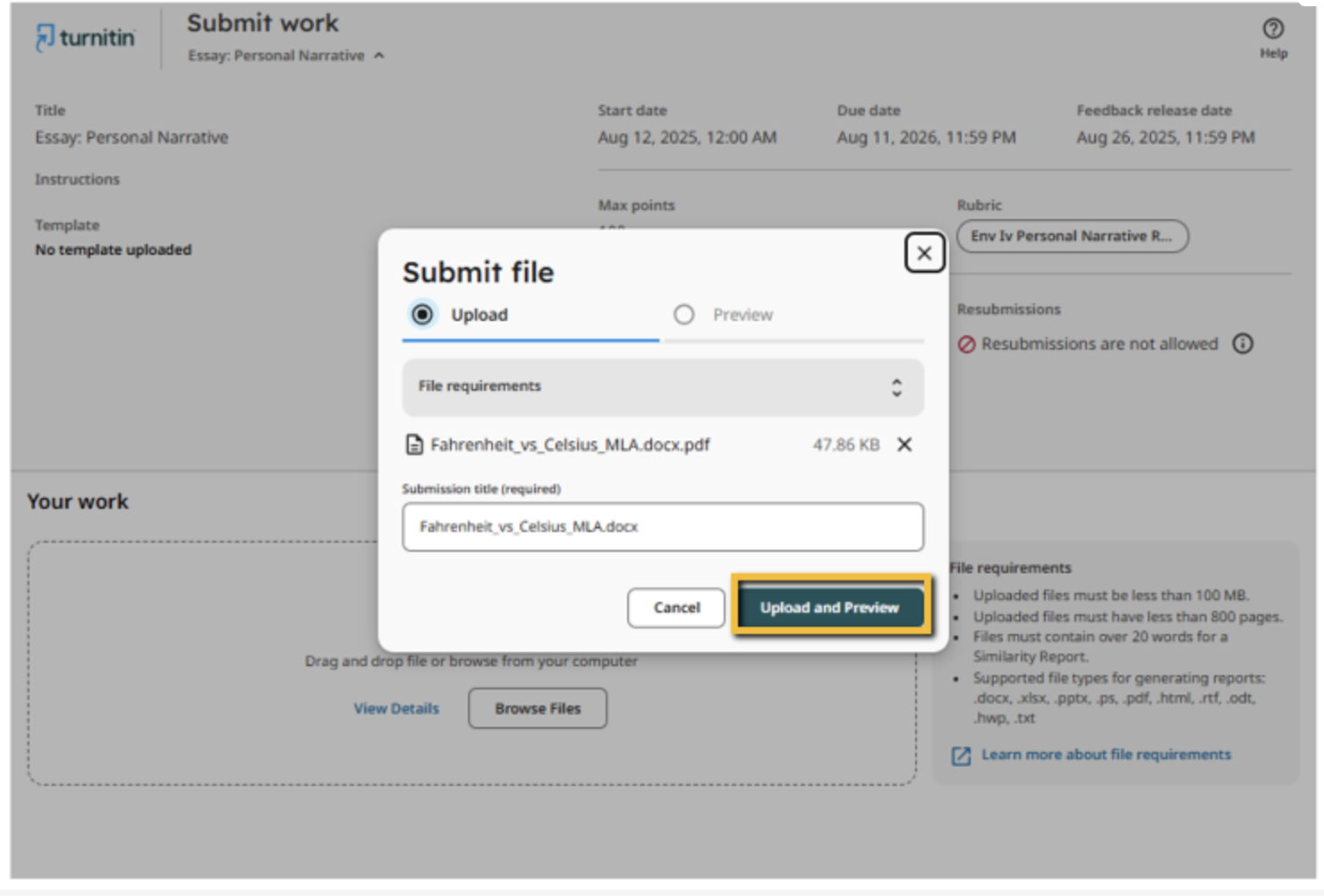
- On the first screen, you may either click and drag your saved file from the computer, or you can click "Browse Files" and search for your paper by title.
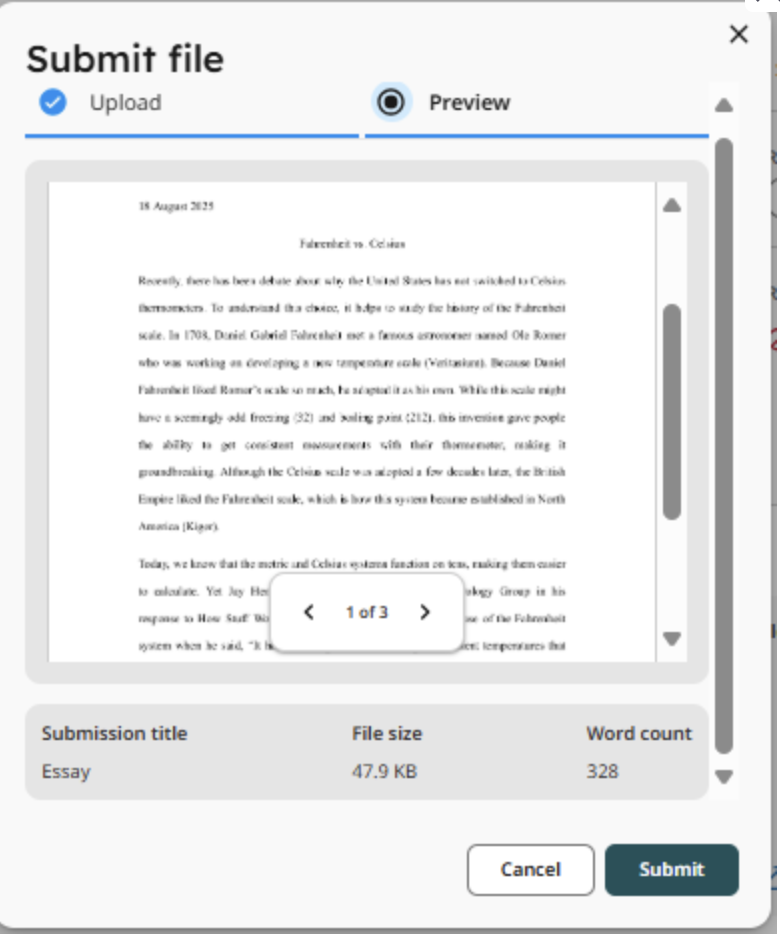
- Once you have selected your paper, on the pop-up, make sure your Submission Title is named correctly and click "Upload and Preview."
- When the preview has loaded in, verify that your paper is showing up correctly, then click "Submit."
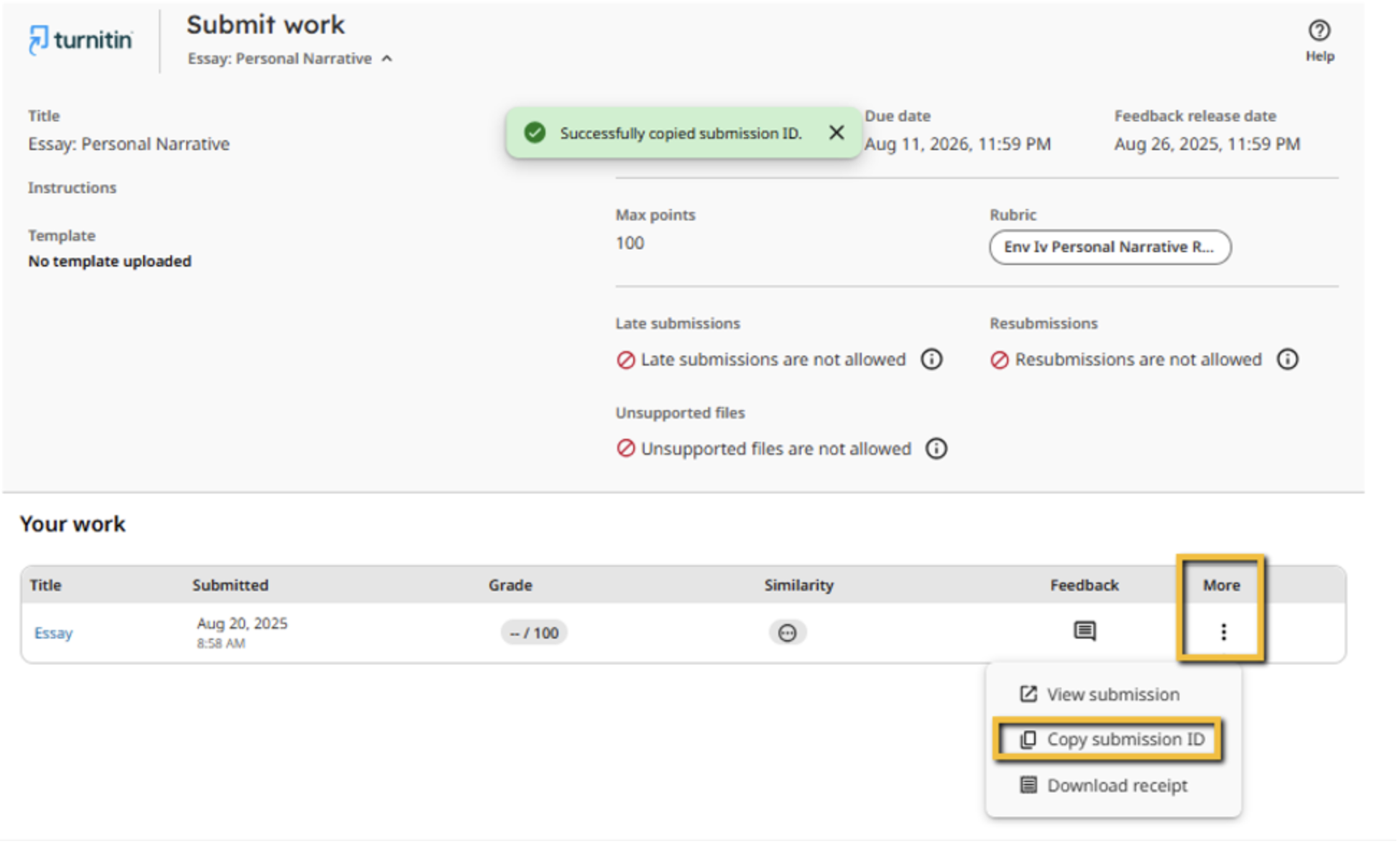
- Finally, ensure that "your file was successfully uploaded," and shows up under "Your work" at the bottom. Be sure to click the 3 dots under "More" and "Copy submission ID" for you to submit in Ignitia.
- You can return to your course list by clicking "Home" in the top left corner.
IMPORTANT!
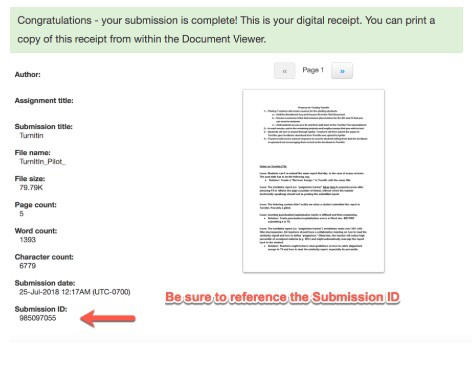
Copy and paste the submission ID number into the writer box in Ignitia (do not paste the number in the Help box in Ignitia or email the number to a teacher) and click “Turn It In.” There is no need to upload any file to Ignitia before submitting your work for grading. Only the submission ID number is needed. Teachers will then locate your paper in Turnitin, grade your paper, and enter your grade into Ignitia. You can then view the graded paper in Turnitin.
This step is essential to the submission process! To receive credit, you must both submit your paper to Turnitin and enter the Submission ID in the Writer’s Box in Ignitia.
Failure to complete both actions means your teacher cannot grade your assignment, and it will receive a zero.
Viewing Your Overall Grade and Instructor Feedback
 |
|
Interpreting the Similarity Report
 |
|
Troubleshooting
 |
Frequently Asked Questions
 | Why do students have to submit to Turnitin? Turnitin is a tool Enlightium Academy has chosen to use to ensure academic honesty, as well as to provide thorough feedback on essays. With it, instructors are able to assist students in becoming excellent writers by the time they graduate from Enlightium. I can’t log in to Turnitin. What should I do?
I don’t see one of my classes. What do I do? Send your teacher a message in Ignitia with your student email address, asking them to add you to their Turnitin class. Why do I need to submit something to both Ignitia and Turnitin? Turnitin will check your paper for plagiarism and will be the place where your teacher provides feedback. Your teacher also needs the submission ID in Ignitia both to be able to find your paper easily and know it is ready to grade. Does the similarity report tell how much the paper plagiarized?
Some of my projects need to be submitted in Ignitia, and others need to be submitted in Turnitin. How do I know which is which?
Can I plagiarize unintentionally? Yes. Even unintentional plagiarism is plagiarism. If you have plagiarized unintentionally, your teacher will inform you that they have plagiarized, and you can explain the situation to your teacher. Is plagiarism only when someone copies and pastes text? No. When a student uses similar wording to a source but does not make it significantly different enough, they commit synonym plagiarism. For what Turnitin calls “Find-Replace” plagiarism, see this article. Is it still plagiarism if I don’t do it on a project? Yes. Using an outside source inappropriately on any assignment is plagiarism. This is even the case on short answer or multiple choice questions. |
Contact
 |
|